Business process modeling is essential in the modern corporate world. With the right software, however, it can be not only efficient but also intuitive. These ten practical tips will help you get started with this innovative BPM tool and take your process modeling to the next level.
Tip 1: The drag-and-drop function for tabular modeling
Aeneis BPM software comes with a variety of advanced features to make process modeling not only more effective but also more user-friendly. The SmartModel view of this BPM tool plays a particularly important role here. By referencing responsibilities in the DEBI columns, process modeling is both simplified and accelerated.
Imagine you need to assign a specific person responsible for multiple process steps. Instead of selecting that person manually every time, Aeneis offers a smarter solution: you can simply drag and drop the employee into the desired cells.
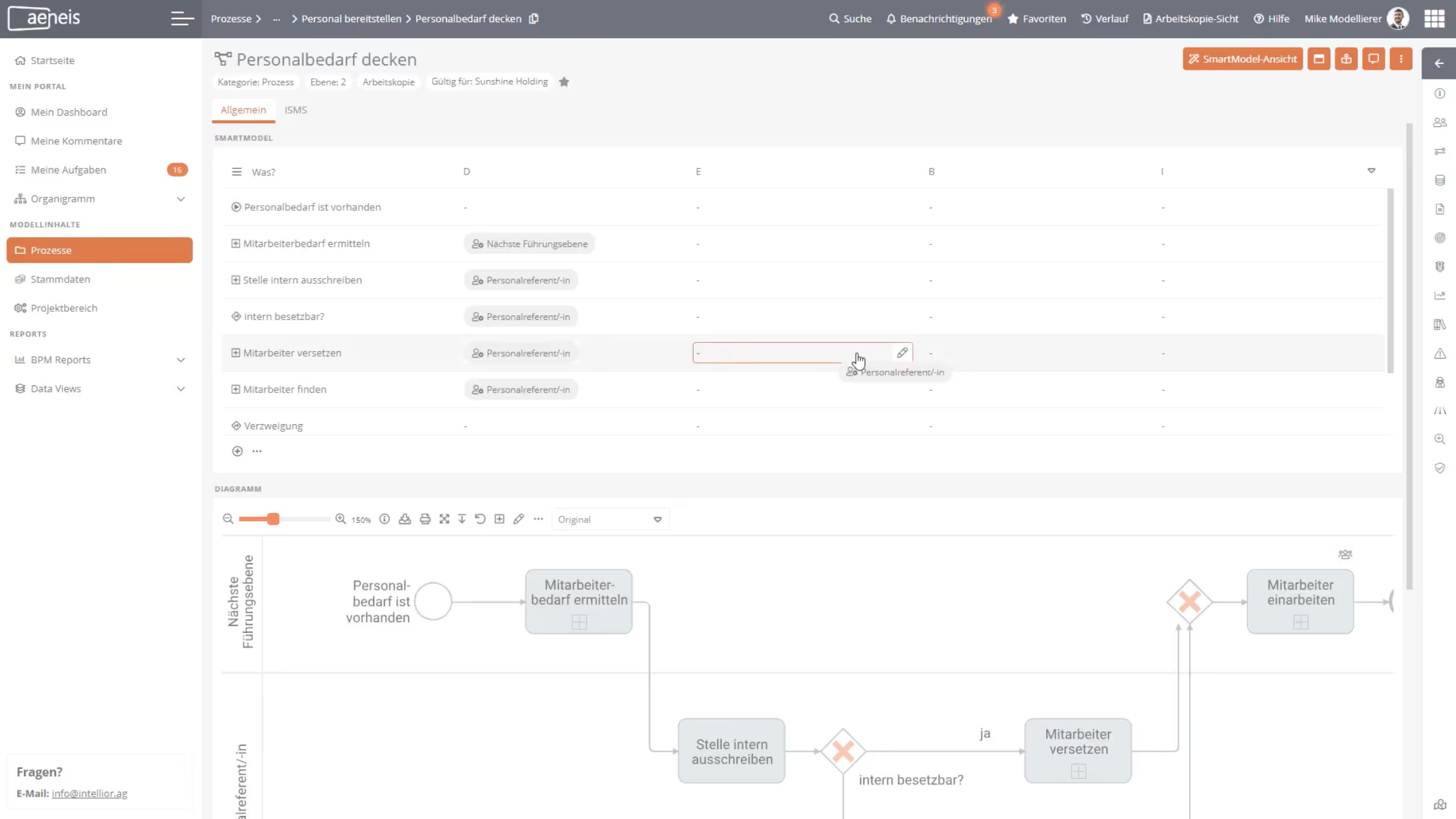
This not only saves time but also minimizes potential sources of error caused by manual entry. This makes process modeling both more efficient and more reliable.
You can also find more information about the SmartModel view in our online help.
Tip 2: Displaying details in diagrams
By clicking on each individual shape, you can view all associated properties. However, if you are specifically looking for certain information in complex diagrams, this approach can be quite challenging, as it takes a lot of time to click on every shape individually.
For this reason, Aeneis offers the option to display details directly within the diagrams. This gives you a quick and clear overview of the most important properties of each shape.
This allows employees to see at a glance whether inputs, outputs, event triggers, model object references, or comments have been added. Other important properties, such as responsibilities, IT systems, and documents, are also made visible.
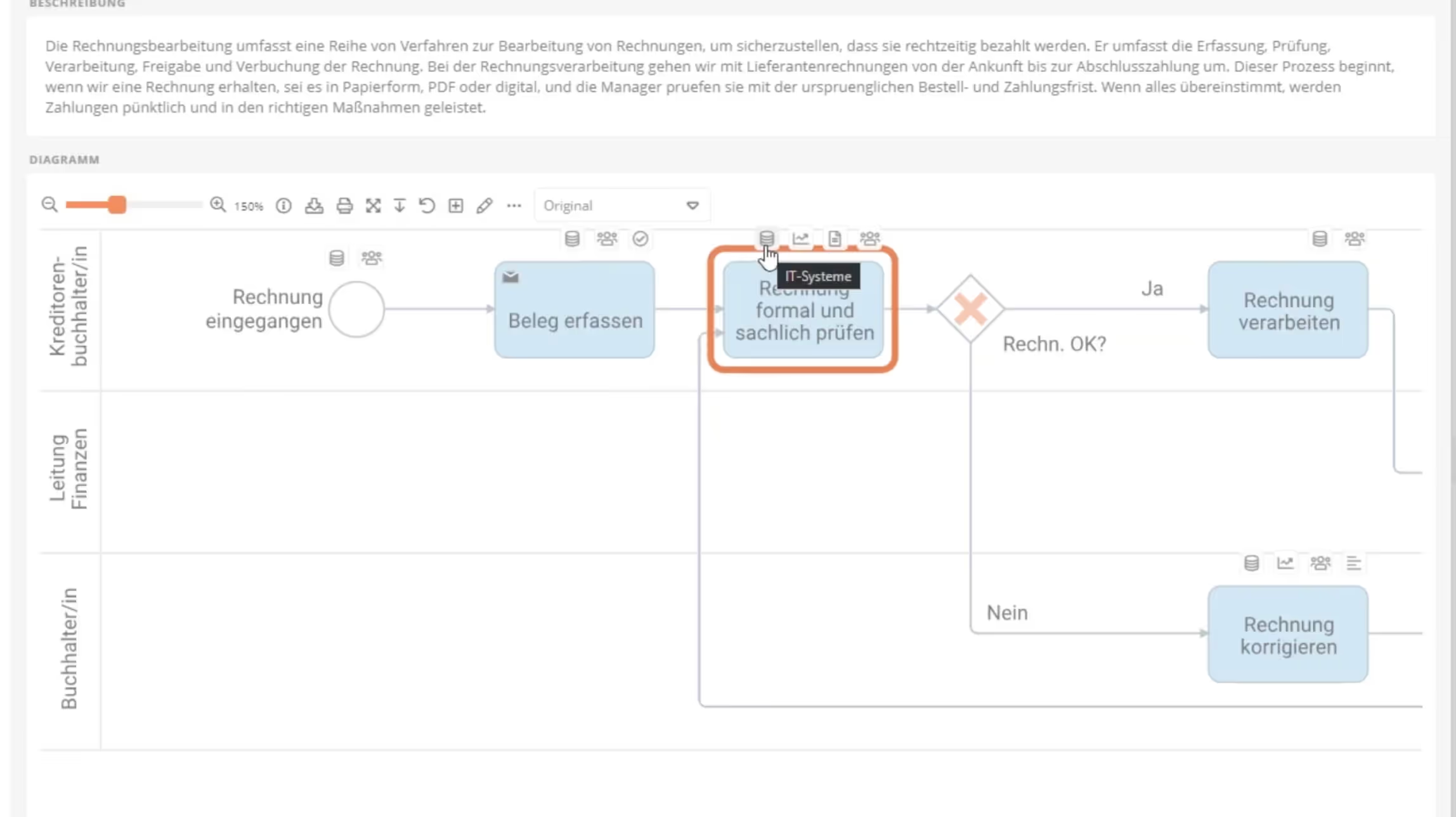
With just a single click on a detail, you can not only view the exact value but also navigate directly to it. This high degree of flexibility is available in both the portal and the WebModeller, where you can show or hide details as needed. This allows processes to be analyzed and optimized more quickly.
Tip 3: Easily expand sub-processes
A detailed understanding of processes is crucial for designing efficient business workflows. The BPM suite Aeneis offers a particularly simple and intuitive way to handle sub-processes.
When you create and model a sub-process within a parent process, it is easy to lose sight of the overall process.
To prevent this, Aeneis allows you to conveniently expand individual sub-processes within the main process. This not only gives you a complete overview of both the main and sub-processes but also provides flexible display options. You can choose to display only individual sub-processes or all of them simultaneously. These options are available in both the portal and the WebModeller.
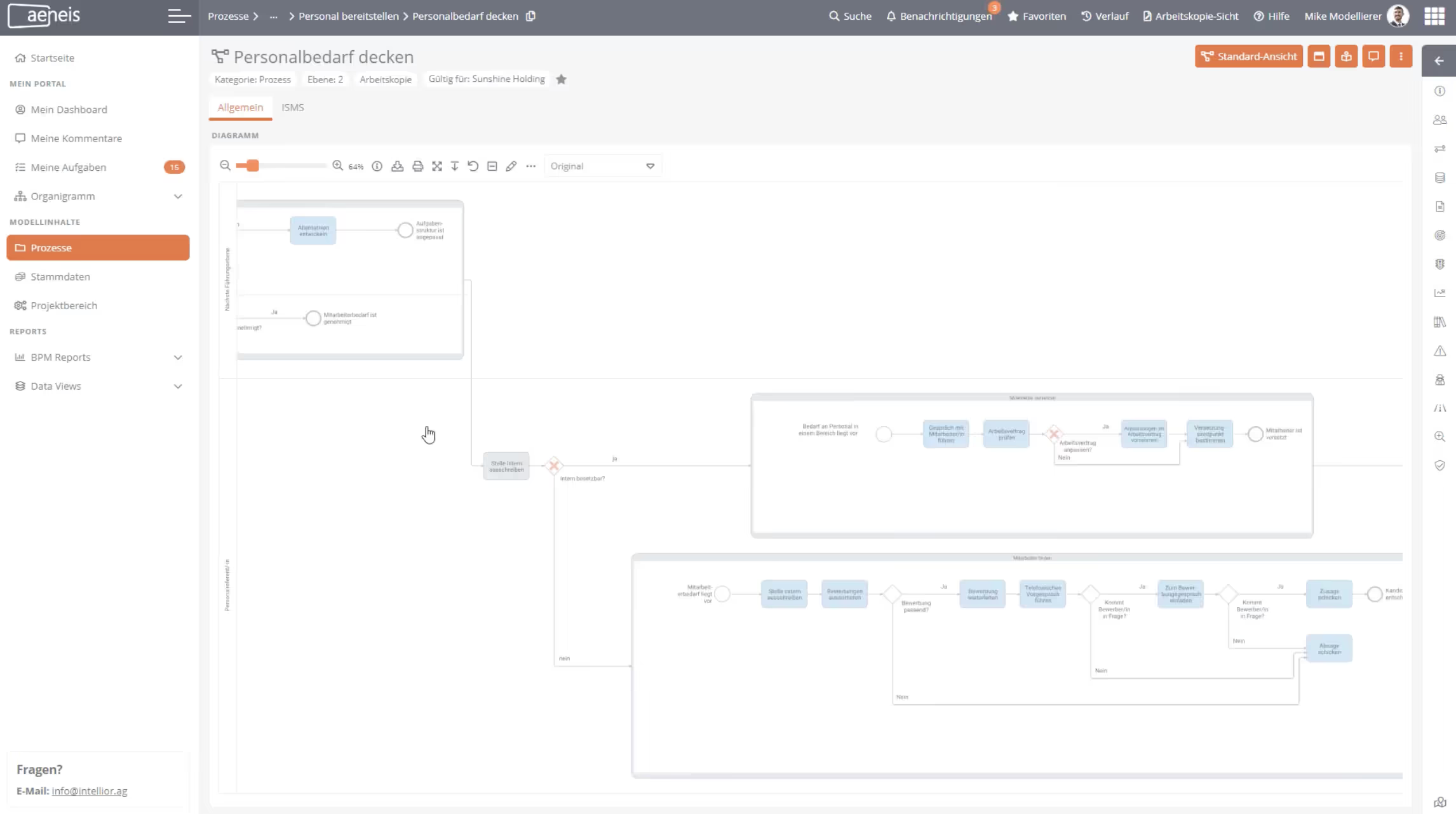
A particularly outstanding feature of the WebModeller is the ability to model a sub-process directly within the parent process. This saves time, reduces complexity, and makes the overall modeling process more efficient.
With Aeneis, you get software that not only provides deep insights into your business processes but also offers the flexibility needed to model and optimize them smoothly and clearly. In our online help you will find much more information on exactly how the WebModeller works.
Tip 4: Easy navigation in extensive process landscapes
Companies often work not just with small process models, but with extensive process maps. With particularly large models, it is easy for employees to lose track or get lost in the details. To make navigating such complex diagrams easier, Aeneis has an innovative solution for this as well.
Thanks to diagram navigation, selected areas of the diagram can be viewed easily at any time. This applies to both the portal and the WebModeller. You can move the highlighted area in the diagram using drag-and-drop. Navigating through extensive processes becomes child's play.
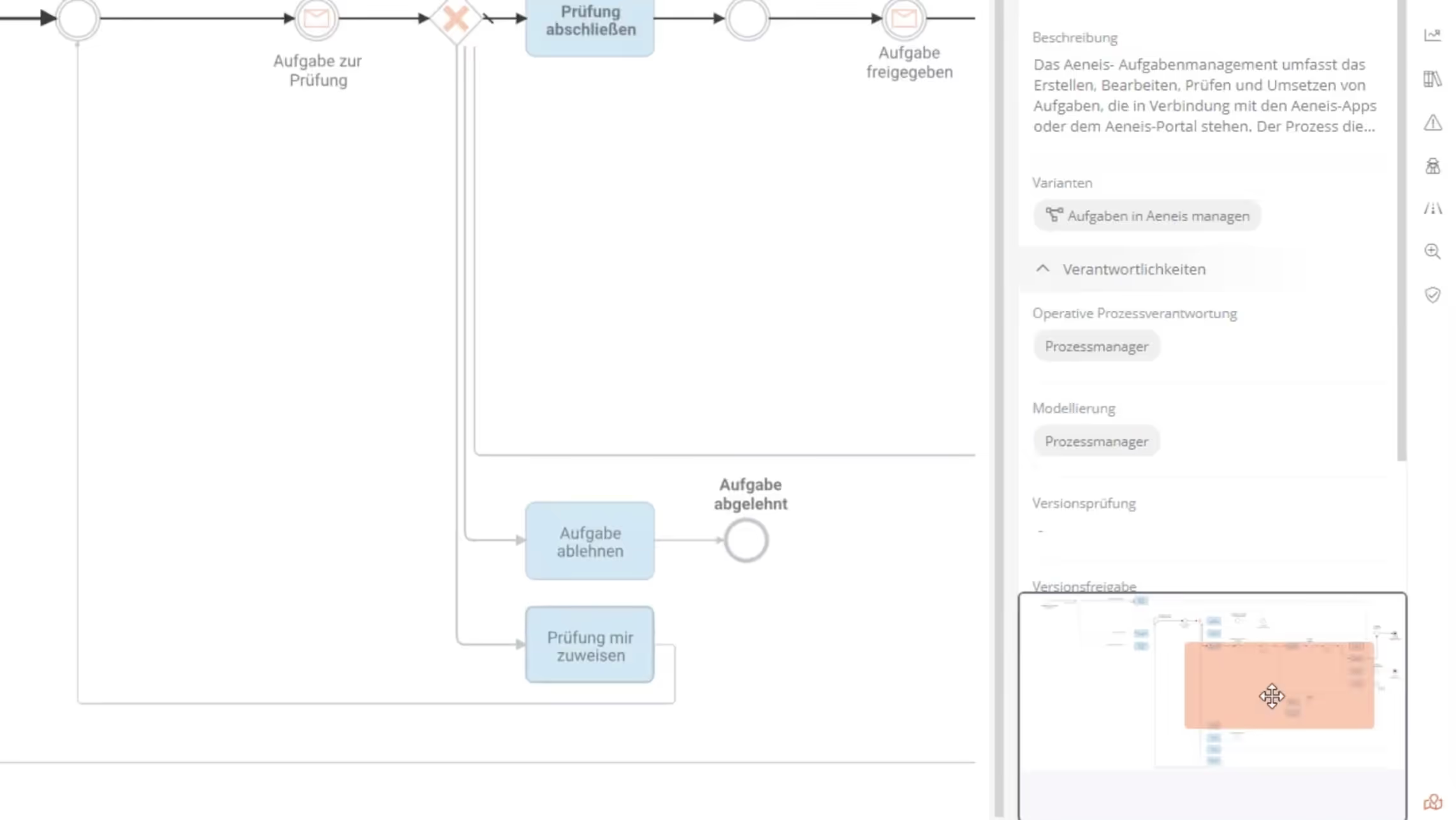
To access this powerful navigation tool, simply click the button with the map icon in the bottom right corner. The diagram navigation will open immediately. No matter how complex your process landscapes are, all employees will always maintain a clear overview. Potential errors are minimized through improved visibility and control.
Tip 5: Open processes directly in the WebModeller
When you create new processes in Aeneis, you can open and model them directly in the WebModeller. The same applies to existing processes. No matter where you are in the portal, you can open the respective process in the WebModeller with just a few clicks.
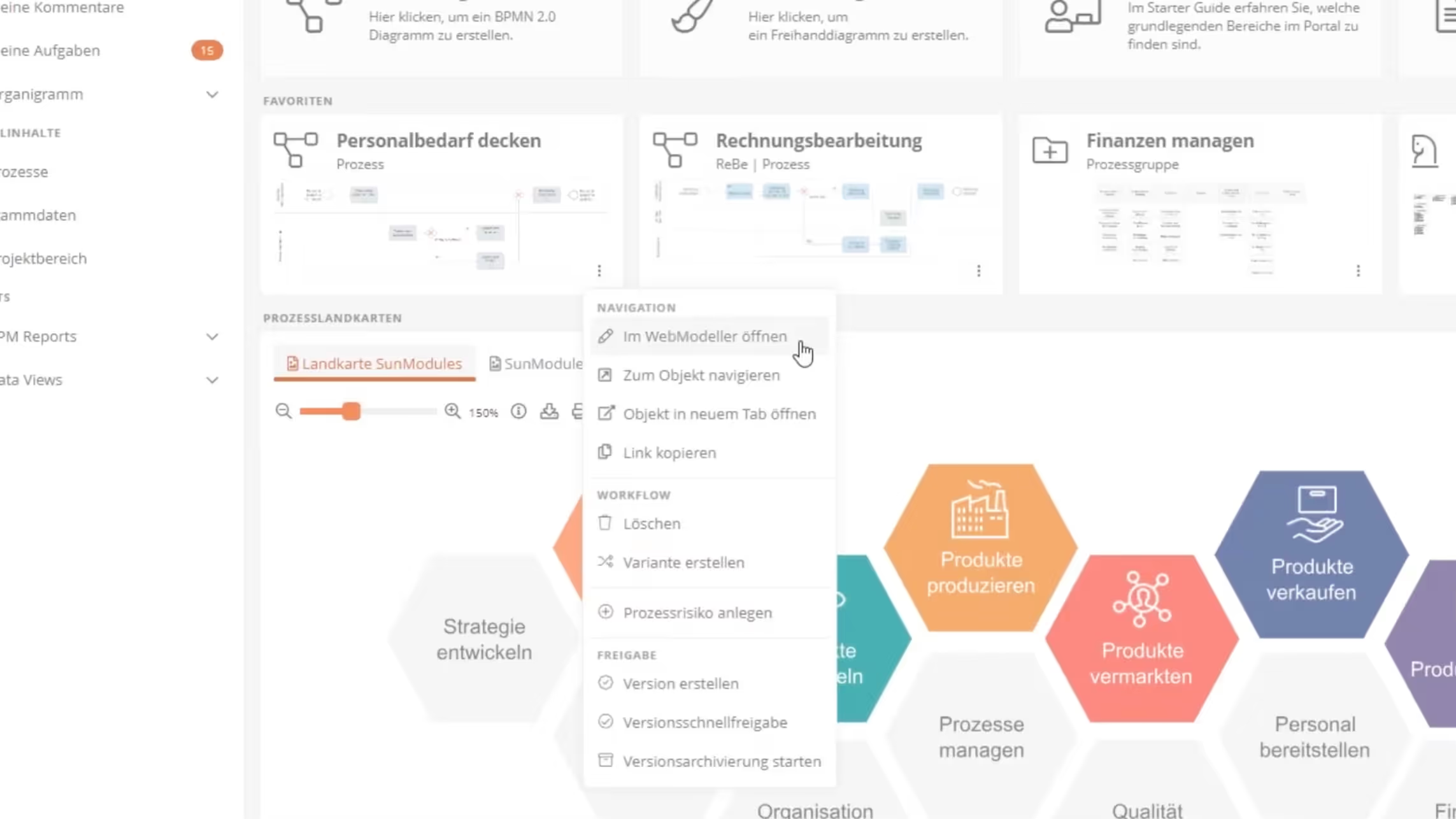
Click the three-dot button to display the process context menu. By selecting "Open in WebModeller," you will be taken to a new browser tab where you can start modeling your process or continue with existing models. This feature provides a seamless transition between the process overview and detailed modeling.
Collaboration through process management software
Learn how to improve team collaboration with Aeneis in our guide.
Download for free now!
Tip 6: Seamless integration from the WebModeller back to the portal
The flexibility and adaptability of BPM software are crucial for effective process modeling. Aeneis demonstrates its strength here as well with the seamless integration between the WebModeller and the portal.
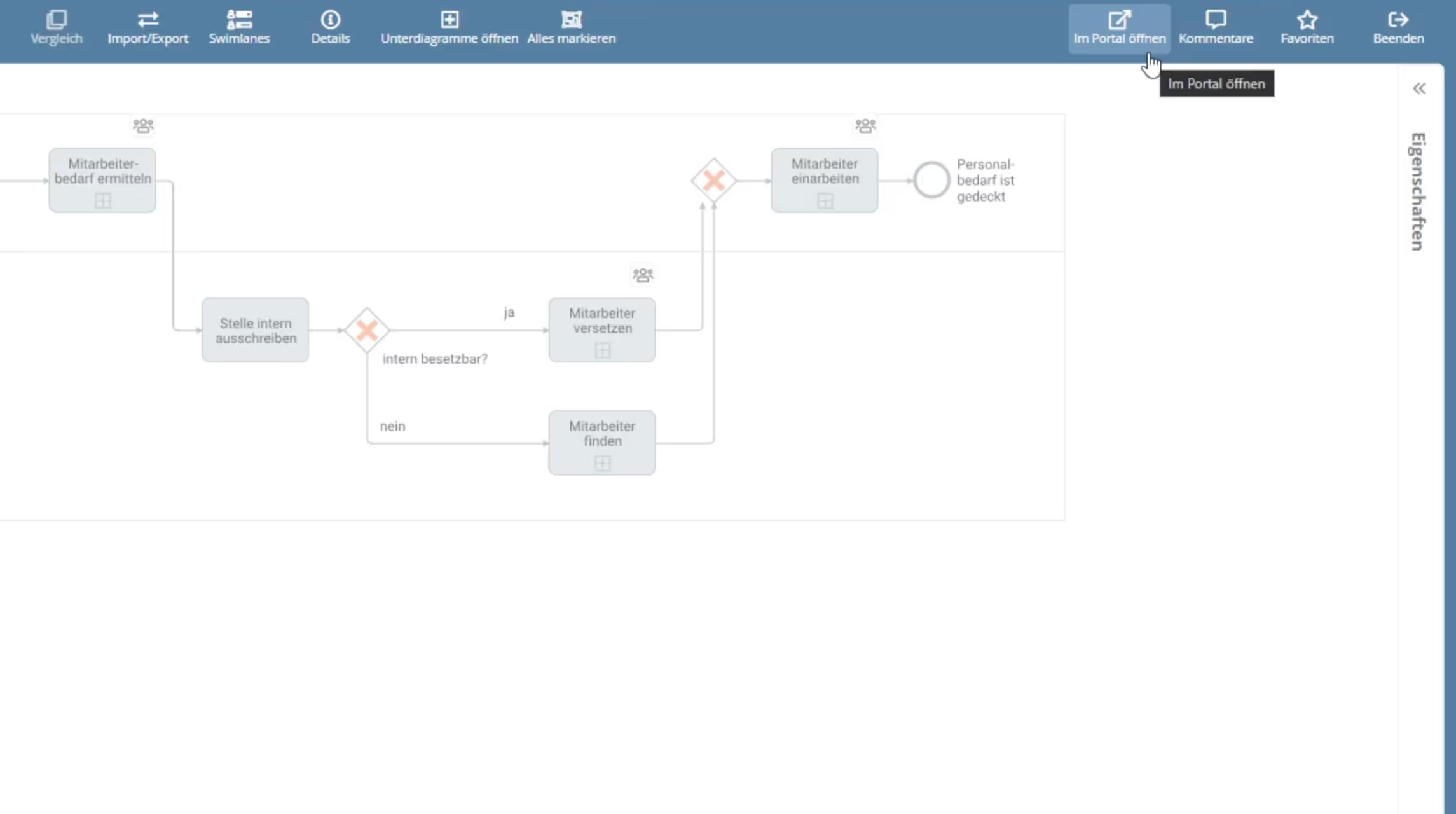
With "Open in WebModeller," you can jump straight into modeling a process. The "Open in Portal" function provides the perfect counterpart. Once you have finished modeling a process in the WebModeller or want to view the current status in the portal, you can do so with a single click on "Open in Portal." You will find this command in the toolbar. The process will then open directly in a new browser tab within the portal.
Tip 7: Optimize your workspace in the WebModeller
Intuitive and customizable user interfaces are essential for an optimal workflow. The Aeneis WebModeller more than meets this requirement, providing you with all the tools you need for efficient process modeling.
An optimal user interface offers not only all the necessary functions and features but also an uncluttered workspace. Whether you are working on a large desktop in the office or on a compact laptop screen at home, the WebModeller adapts to your needs. With just a few clicks, you can collapse the model overview, the properties sidebar, and even the palette. This gives you maximum space for your process modeling and allows you to focus entirely on what matters most.
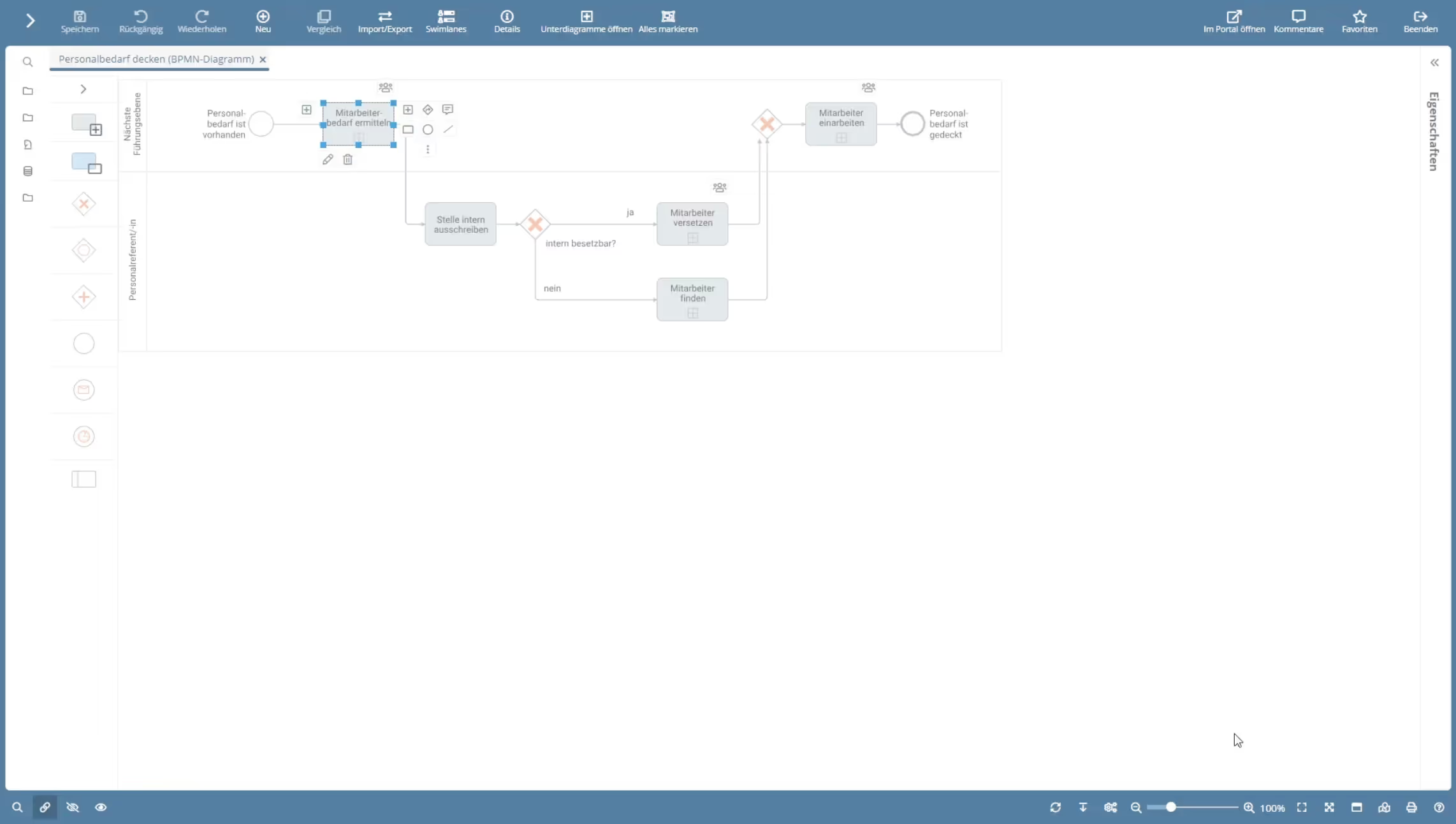
By giving employees the ability to customize their own work environment, team productivity can ultimately be increased.
Tip 8: Referencing tasks directly when creating shapes
In complex corporate structures, it is not uncommon for certain tasks to recur in multiple processes. However, when modeling graphically in the Aeneis WebModeller, you don't have to waste time on redundant work.
Instead of manually recreating a task that already exists, you can simply reference it. Enter the name of the task while creating a shape. The Aeneis BPM software will then present you with a list of relevant suggestions. Click on the appropriate task, and it is integrated into your current process.
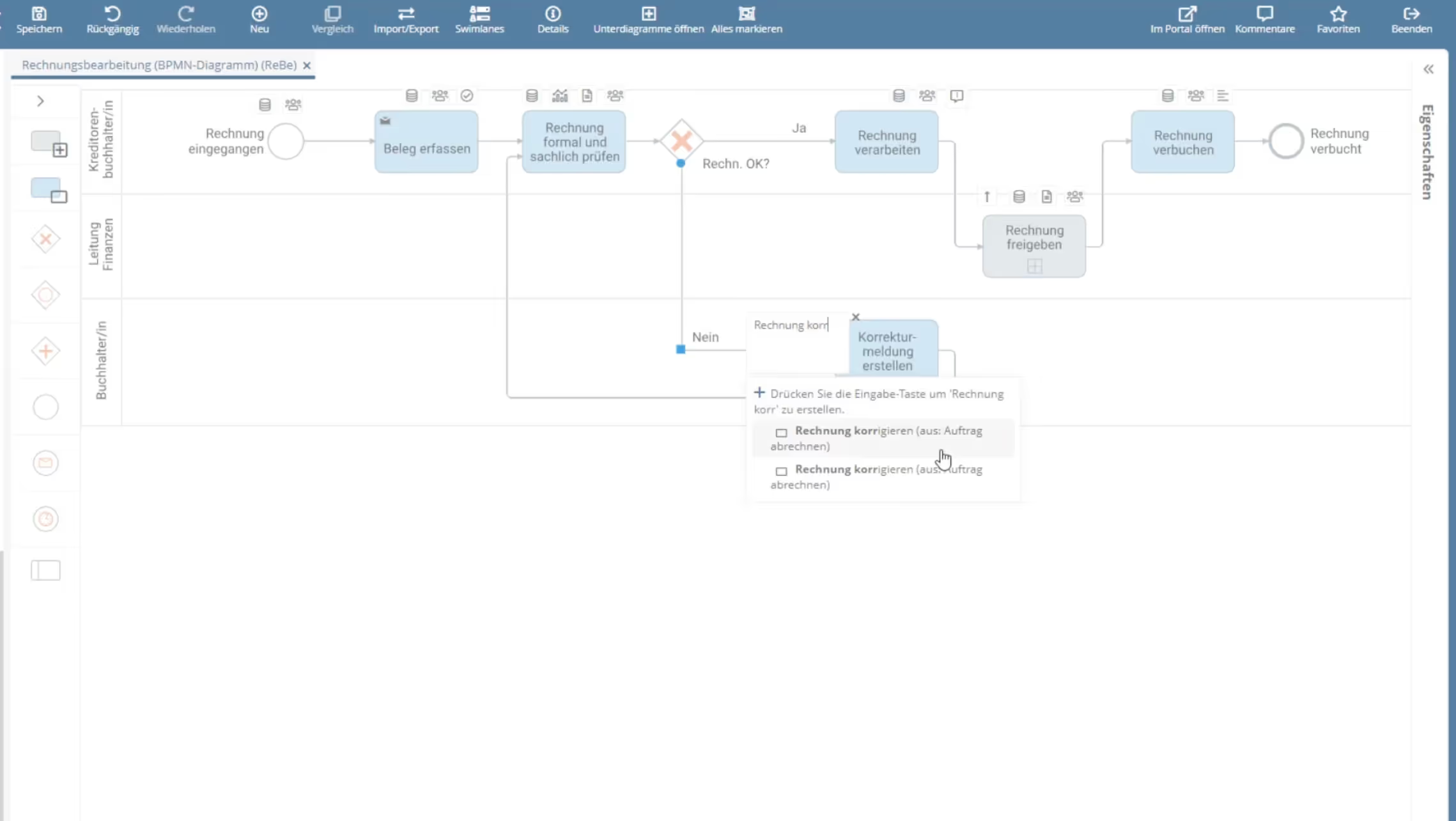
This is how the Aeneis BPM tool reduces manual effort, prevents errors caused by duplication, and accelerates the modeling process.
Tip 9: Save time and increase efficiency: Edit multiple shapes simultaneously
Often, different shapes in processes share the same properties. To ensure you don't have to edit a multitude of these shapes individually, the Aeneis BPM software supports you with an effective solution here as well.
Instead of editing each shape individually, you can assign the same properties to multiple shapes at once in the WebModeller. Simply hold down the Ctrl key on Windows or the Command key on Mac and select multiple shapes simultaneously. You can then define the desired properties for all selected shapes at once.
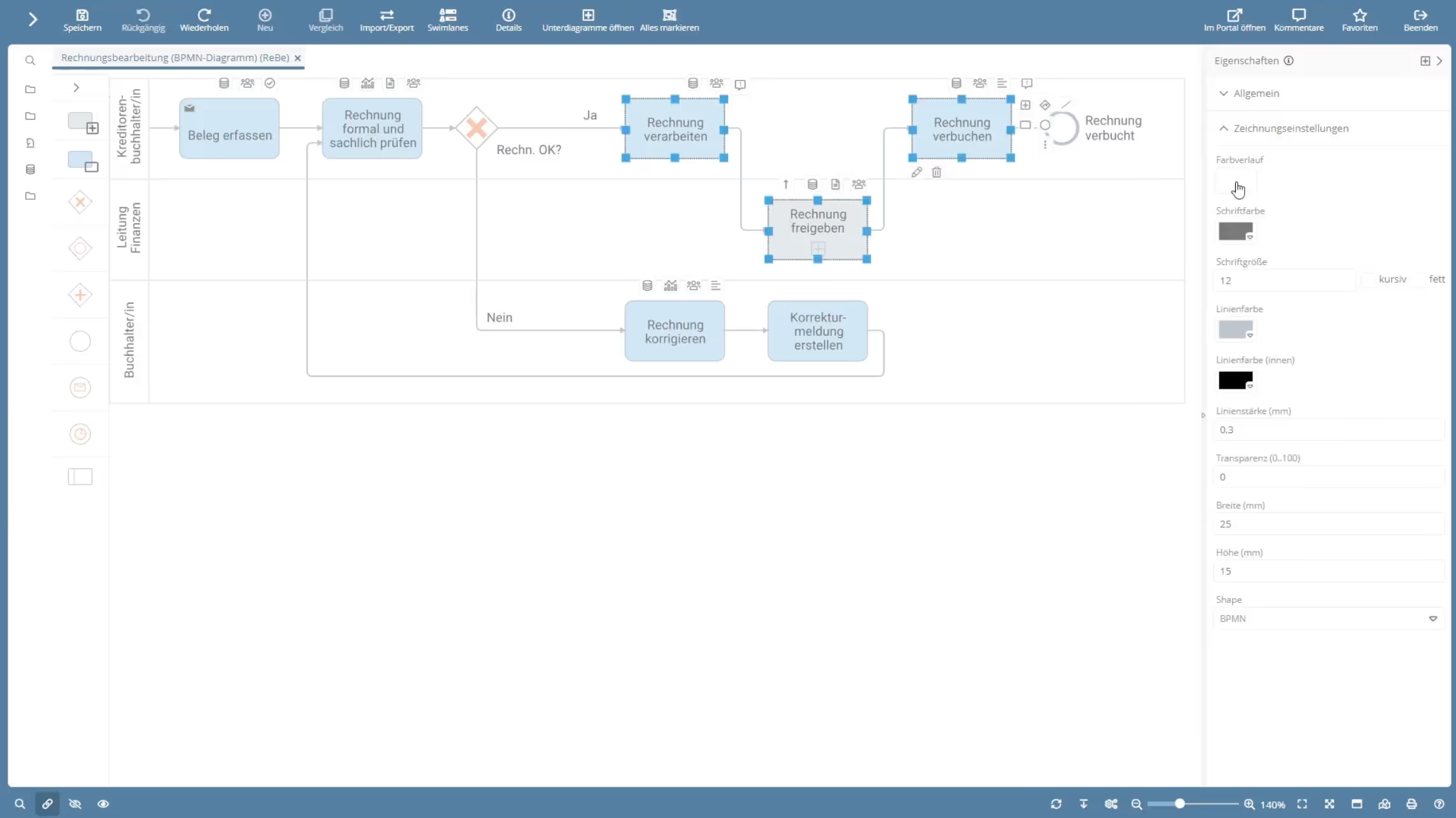
This not only saves valuable time but also makes the modeling process clearer and helps reduce errors.
Tip 10: Maximum efficiency with shortcuts in Aeneis
In a digital work environment, keyboard shortcuts can save a significant amount of time. The Aeneis BPM suite provides an intuitive and practical set of shortcuts in the WebModeller to help you simplify and accelerate your modeling process.
For example, you can use the keyboard shortcut Ctrl + A (Command + A on Mac) to select all shapes in a diagram at once – ideal if you want to make quick adjustments to the entire model.
If you want to open the properties of a specific model object, the keyboard shortcut Ctrl + Enter (Command + Enter on Mac) will help.
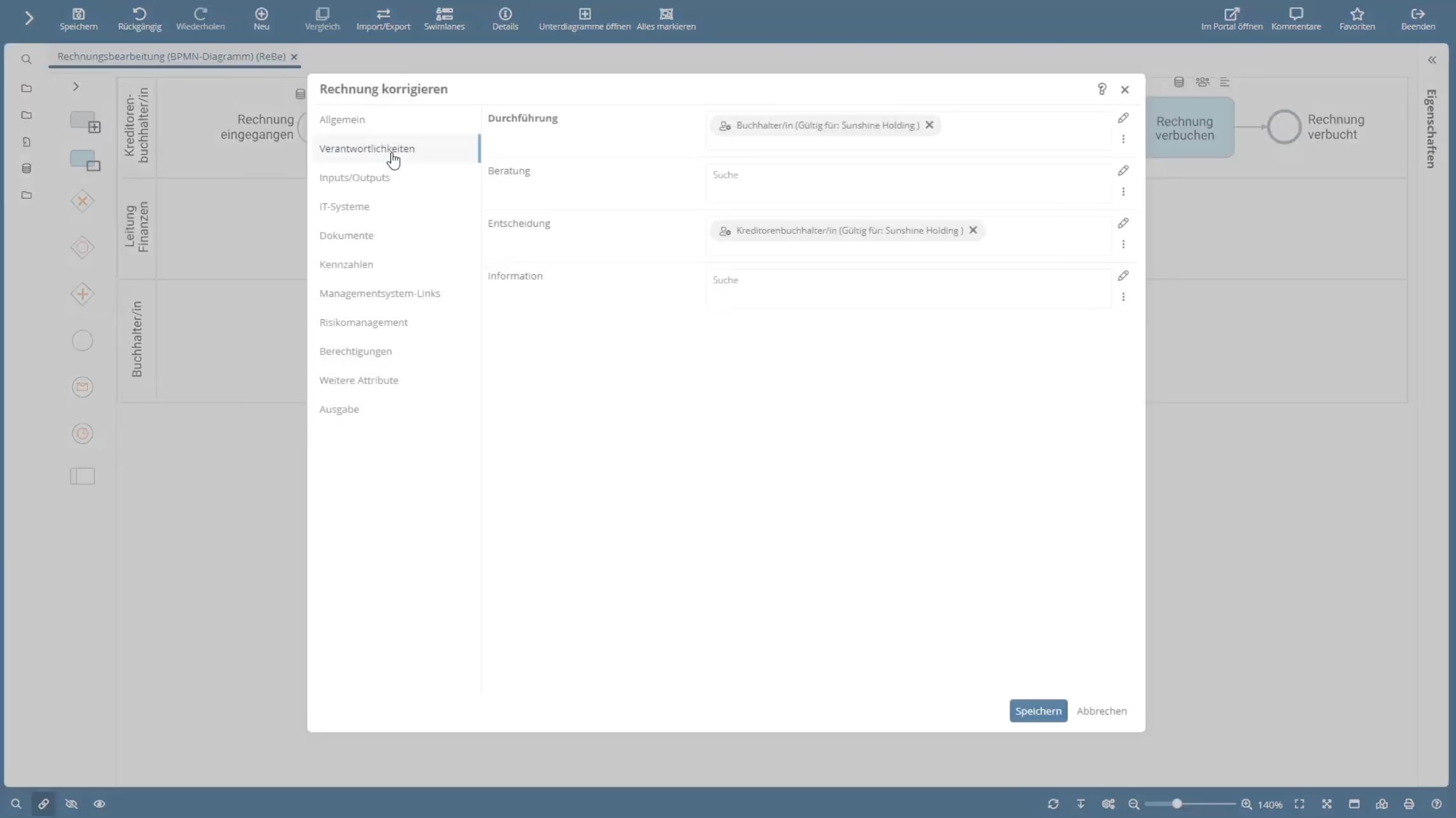
And those are just two of the many useful shortcuts Aeneis has to offer. For those who want a comprehensive overview of all available keyboard shortcuts, Aeneis provides a clear list in the WebModeller under "Help > Shortcuts."
Test Aeneis with the free trial version
Aeneis supports you and your company with innovative and intuitive process modeling.
With the tips and functions presented here, you can get the most out of this intuitive BPM software. The range of user-friendly features and well-thought-out shortcuts is perfectly tailored to the needs of experienced modelers as well as employees with little prior knowledge.
Discover the versatility and efficiency of the Aeneis BPM software for your company and try out the tool in our 30-day free and no-obligation trial version today.
FAQs
How can software simplify process modeling?
BPM software like Aeneis makes process modeling significantly more efficient and intuitive. Features such as tabular data entry, drag-and-drop assignments, and automatic diagram generation reduce effort and minimize potential errors during modeling.
How can collaboration in process modeling be made efficient?
The Aeneis BPM software supports teams with the SmartModel view, where processes can be modeled collaboratively and clearly in a table. Responsibilities can be assigned via drag-and-drop, and automatically generated diagrams ensure clear visualization.
How do users keep track of complex processes?
With the integrated diagram navigation in Aeneis, even large process landscapes are easy to manage. Users can see the entire process in miniature and use drag-and-drop to focus on or move specific areas, allowing them to work on relevant process sections at any time while maintaining a complete overview.
How can sub-processes be displayed clearly?
In the Aeneis process management software, sub-processes can be expanded and modeled directly within the main process. This creates a clear overall view, reduces redundant work steps, and enables a consistent understanding across all processes.
How can modelers create an optimal working environment?
The WebModeller, the graphical modeling environment of Aeneis, allows you to customize the user interface. Palettes, sidebars, and overviews can be shown or hidden to focus on modeling, making it ideal for efficient work on any device.
How can time be saved during process modeling?
In the Aeneis process management software, multiple shapes can be edited simultaneously and properties can be changed in bulk. In addition, numerous shortcuts are available in the WebModeller to speed up frequent actions and make modeling even more efficient.