Anyone working on complex projects knows the challenges that come with effective communication and process management. Especially when multiple team members and departments are involved, managing feedback and comments can quickly become overwhelming. That is why we have developed an efficient solution for this challenge in our process management tool, Aeneis: thanks to the intuitive comment function you can work on processes together and continuously optimize your workflows.
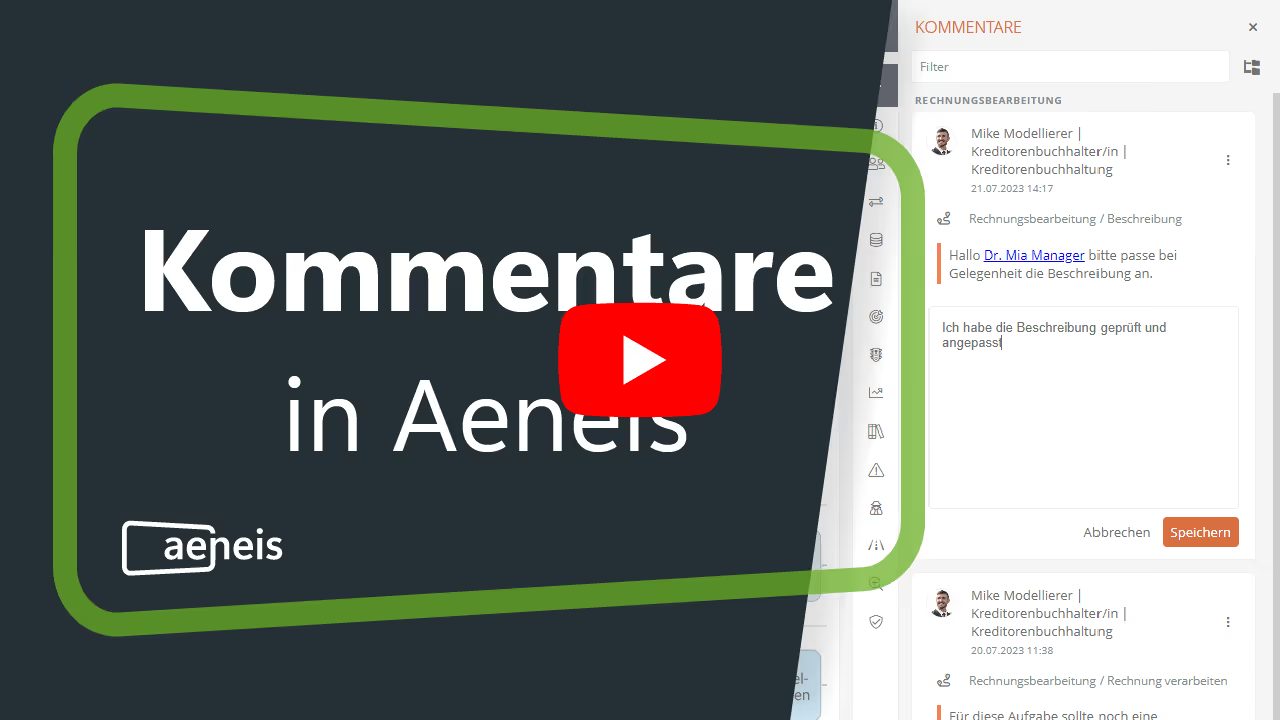
The comment function in the Aeneis BPM software
Aeneis facilitates collaboration by making it efficient to add, find, and implement comments. While working on processes, you can easily add comments to specific objects.
To create a comment, navigate to the respective object view in the Aeneis Portal. By clicking the speech bubble button there, you can quickly and easily create a comment.

How to reply to a comment:
Our Aeneis BPM software also gives you the option to reply to existing comments. Here is how it works:
- Open the comment drawer for the object (e.g., a process).
- Click "Reply" on the comment card.
- Enter your response in the input field.
- Click Save to add the reply to the overview.

The reply will now appear in the comment drawer below the comment that was addressed.
This simplicity in communication increases productivity and contributes to the continuous improvement of process workflows.
How to reply to a specific part of a comment:
Our BPM suite also gives you the option to reply only to specific sections of a comment.
When creating a new comment, you can select a highlighted area that you would like to comment on specifically. With just a few clicks, you can add a comment and highlight specific areas or make general notes about an object.
Mention colleagues in your comment
Another special feature in our BPM software Aeneis is the mention function. By simply using an "@" symbol followed by the colleague's name, you can specifically address and notify individuals in your comments.
Colleagues who have been mentioned in a comment will then receive a notification in the portal header and can view the comment in the "My Comments" dashboard.

Mention other objects in your comment
Our BPM suite Aeneis goes one step further: not only can colleagues be mentioned, but also specific objects such as documents, IT systems, glossary terms, roles, and processes or process groups.
Simply enter the following prefixes to do this:
- @doc: Documents
- @app: IT systems
- @glo: Glossary terms
- @rol: Roles
- @pro: Processes or process groups
This allows you to link objects directly within a comment. Clicking on the link will then take you to the respective object. If a role was mentioned in a comment, all employees assigned to that role will receive a notification in the portal header.
This increases transparency and ensures that relevant information reaches exactly the right place. You can find more information about the mention function in our online help.


Want to learn more about collaboration in the Aeneis process management tool?
Download our free guide to find out more!
Stay on top of things with the "My Comments" dashboard
Of course, it’s not just about being able to leave comments quickly and easily. It is just as important to keep track of those comments.
To ensure you can always find important comments, the Aeneis portal provides a clear "My Comments" dashboard. This allows you to track comments at any time so you never lose sight of what matters.
You can find these comments
Your dashboard displays the following comments
- Comments or replies where you have been mentioned
- Comments or replies regarding an object for which you are assigned as the person responsible
- Replies to comments you have created

Sometimes you may be mentioned in a large number of comments. That is why we have included a useful filter function in Aeneis. By integrating various filter options, you can narrow down your view and display only the comments relevant to a specific topic.
In our online help we explain in detail how to navigate the "My Comments" dashboard. You will also find helpful information there on how to use the filter function and how to reset your filters.
Processing comments in Aeneis
In your "My Comments" dashboard, you can quickly find all relevant comments, whether you were mentioned directly or are responsible for the object being commented on. And when it comes to addressing these comments, our BPM suite Aeneis offers simple tools for handling and management.
You have the ability to easily manage comments and clearly communicate their processing status.

In the "My Comments" overview or directly within the context of the respective object, you can comment status view and adjust. With simple clicks, employees can change the status of their comments, which in turn sends automatic notifications to the object owners or the comment creators.
This ensures transparent and timely communication across all process participants. Furthermore, this approach ensures that no feedback is lost.
Our BPM suite Aeneis for better communication in your company
Effective process management requires clear and consistent communication. This is where our BPM suite Aeneis shows its strength. With its advanced commenting feature, Aeneis not only makes it easy to add and manage comments, but also enables transparent communication regarding processing status.
The ability to change the status of a comment in real time and automatically notify the relevant stakeholders is an invaluable advantage. This ensures that everyone on the team is always up to date. As a result, the risk of misunderstandings or overlooking important notes is significantly minimized. In a dynamic work environment where response time and clarity are crucial, Aeneis provides exactly the tools you need for your success and the success of your company.
Test Aeneis for 30 days for free
If you are looking for software that facilitates not only your process management but also your team communication, Aeneis is the perfect solution.
And here is the good news: You can now test the commenting feature of our BPM suite Aeneis and all its benefits for 30 days free of charge.
See the possibilities for yourself and experience how Aeneis can transform your process management. Request your trial version today!
Table headline
FAQs
How do I create a new comment in Aeneis?
In the Aeneis portal, navigate to the object view (e.g., process, document, role) and click the speech bubble button. Enter your comment in the comment drawer that opens and save it – that's it.
How do I reply to an existing comment in Aeneis?
Open the object's comment drawer, click "Reply" on the comment card, type your response into the input field, and save. Your reply will appear directly below the original comment.
Can I also add comments to specific parts of an object in Aeneis?
Yes. In Aeneis, you can add comments either generally to an entire object (e.g., a process) or specifically to a certain part of the object (e.g., a process step). This keeps feedback precise and always in the right context.
How do @-mentions for employees and objects work in Aeneis?
Type "@" followed by a name to mention employees. They will then receive a notification in the portal and see the entry in their "My Comments" dashboard. You can also link objects: @doc: (documents), @app: (IT systems), @glo: (glossary terms), @rol: (roles) and @pro: (processes/process groups). Clicking the link takes you directly to the linked object; for roles, all role holders are notified.
How do I keep track of all the comments relevant to me?
In the "My Comments" dashboard, you can see comments and replies where you have been mentioned, entries for objects you are responsible for, and replies to your own comments. Use filters to quickly narrow down the view to relevant topics.
How do I process comments in Aeneis in a structured way and communicate their status?
You can change the comment status directly in the object view or in the dashboard. Status changes trigger automatic notifications to those responsible or the original authors. This ensures progress is transparent and no feedback is lost.
What are the benefits of the Aeneis comment function for our collaboration?
It speeds up coordination, increases transparency, and reduces media discontinuities: comments are context-aware and attached to the object, mentions notify the right people, links lead directly to relevant content, and status updates/notifications keep everyone in the loop—making it ideal for continuous process optimization.