Process maps are an essential tool for companies to structure complex business workflows and present them transparently. With the innovative Aeneis BPM suite, creating process maps is significantly simplified thanks to an intuitive user interface and a wide range of user-friendly features. This article highlights how Aeneis optimizes the design of process maps, helping companies manage and visualize their processes more efficiently. Discover the simple and effective way to create process maps with Aeneis.
Process maps at all process levels
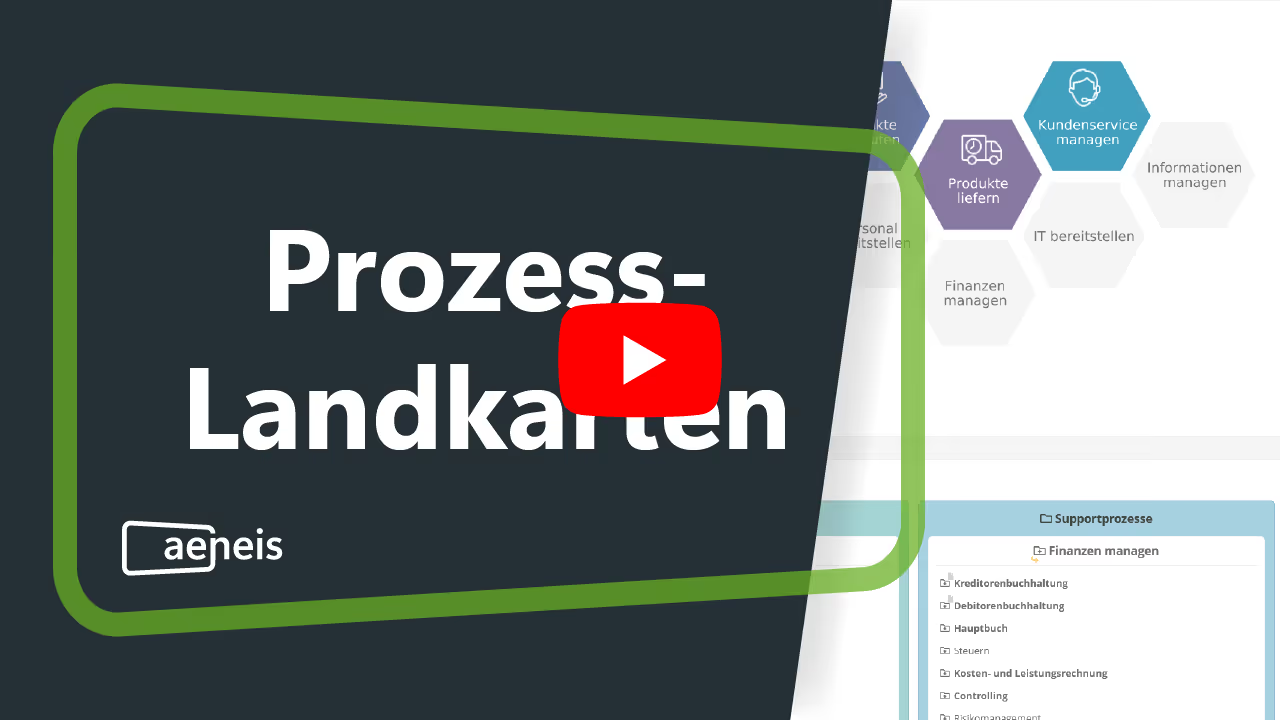
As soon as you open Aeneis, you are greeted by an intuitively designed home page that displays the overall process map by default. This central overview is more than just a graphic representation; it serves as a navigation tool that allows you to dive directly into individual processes.

Flexibility at all corporate levels
One of the main features of Aeneis is its flexibility in handling process maps. Regardless of the complexity or size of your company, the Aeneis BPM software offers the ability to visualize process folders and process groups in custom-designed process maps.

From the largest legal entity down to the individual process, every level can be mapped graphically and linked directly. This feature is particularly valuable for any company that needs a transparent and clear overview of its process landscape.
Column charts: automatically generated process maps
Furthermore, the Aeneis BPM suite offers you the option to use column charts. These automatically generated process overviews provide an alternative way to display process maps and can be viewed alongside manually created ones.

They are particularly useful for getting a quick overview of process folders, groups, and individual processes.
Naturally, the colors of these column charts can be customized to match your company's corporate identity (CI).
Designing process maps with freehand diagrams
Designing custom process maps is a key feature of the Aeneis Business Process Management Suite. It allows companies to visualize their processes in a unique and tailored way.

This allows all shapes and forms to be placed freely and formatted exactly as you need them.
You can also find more information about freehand diagrams in our online help.
Creating freehand diagrams in Aeneis
Creating a freehand diagram starts right on the Aeneis home page. This easy access from the portal enhances the user-friendliness of the BPM software. Thanks to this quick and straightforward entry point, you can get started right away.
Intuitive process group creation
With just one click on the "Freehand Diagram" tile in the portal, you initiate the creation of a new process group. This direct link between the process group and the freehand diagram simplifies work for all employees.
By automatically adopting the name of the process group, the freehand diagram also helps Aeneis maintain clear organization and efficient management of process maps. Ultimately, this saves your employees time when creating process groups.
You can then select a storage location for the freehand diagram. Being able to determine the storage location and diagram name yourself makes it much easier to find and manage process maps throughout the entire company later on.
Direct access to modeling
By clicking "Next," you can then begin modeling directly in the WebModeller. Thanks to this seamless transition from creating the diagram to modeling, you can start working immediately without any delays or extra steps.

Shapes, forms, and symbols for process maps: Design with precision and flexibility
When designing your process maps in Aeneis, you can use various shapes, forms, and symbols. These individual building blocks are easily added using drag-and-drop.
The shapes in your process maps
Shapes are drawing objects that act as interactive links to the underlying processes, process groups, or process folders. In a freehand diagram, you can use a shape to graphically represent process groups or process folders.

The special feature of these shapes is their functionality: clicking on a shape takes you directly to the linked model object. This direct connection between the graphical representation and the actual process data not only simplifies navigation but also increases efficiency in process management.
Shapes – Visualizing relationships
In Aeneis, shapes are purely graphical elements that are not linked to any other model object. They therefore offer an additional dimension for process representation.

Shapes are ideal for drawing backgrounds or clarifying relationships within the process landscape. This design flexibility makes it possible to visualize even complex process structures in a clear and understandable way. Ultimately, this contributes to improved process communication within the company.
If you would like to learn more about creating shapes, we recommend our online help.
Symbols for your process maps
Symbols further expand the design options in the Aeneis BPM suite. You can choose from a variety of predefined symbols, customize their colors, and place them in your diagrams.

All symbols and shapes can also be linked to a model object at a later stage, effectively turning them into functional shapes. This flexibility makes Aeneis a highly adaptable tool for process modeling.
Intuitive customization and placement of shapes, forms, and symbols
Managing shapes, forms, and symbols within your process maps is also incredibly simple in Aeneis.
Once created, these elements can be scaled and positioned anywhere on the canvas. Guidelines and alignment tools help you create process maps that are both harmonious and clear.
Context-sensitive editing – flexibility in every detail
The context-sensitive menu in Aeneis offers advanced editing options for shapes and forms. Here, you can customize colors, shapes, and connections to tailor your process maps to your specific needs.

This allows you to perfectly align your process maps in the Aeneis BPM software with your company's branding.
Transferring formats – design efficiency
Another standout feature of the Aeneis BPM suite is the ability to easily transfer formats to other shapes and forms. This function lets you copy an element's design to others, saving you significant time.
This feature is especially valuable when you need to maintain consistent designs across various diagrams and process maps.
Portal integration for seamless presentation
Finally, process maps created in Aeneis are automatically displayed in the portal. This integration ensures a seamless and consistent view of your process landscape, making it easy for everyone involved to access.

Discover process mapping in our free trial
Experience firsthand how Aeneis redefines the art of process visualization for your company. With our 30-day, no-obligation free trial, you can see for yourself the efficiency and clarity Aeneis brings to creating process maps.
Try Aeneis free for 30 days now!
No installation required – convenient and easy in the cloud

FAQs
What is a process map and why is it important?
A process map is a visual representation of a company's key workflows and their interdependencies. It creates transparency, defines responsibilities, and forms the foundation for efficient process management. In the Aeneis BPM suite, process maps can be easily created and transparently linked to all relevant data.
How can companies clearly visualize complex process landscapes?
With Aeneis BPM software, processes can be mapped graphically at all levels, from the corporate structure down to individual work steps. This allows teams to maintain an overview even with complex workflows.
How is a process map created in practice?
Process maps are typically created in specialized digital systems. In the Aeneis BPM suite, process maps can be created via drag-and-drop or automatically generated as column charts. This allows for a quick start without the need for specialized modeling knowledge.
How can process maps be customized?
The Aeneis process management software offers freehand diagrams that allow shapes, symbols, and connections to be placed freely. This ensures that every process landscape can be visually and content-wise adapted to the company's requirements.
How does software support collaboration in process modeling?
In the Aeneis BPM software, all process maps are directly linked to the underlying processes. Changes, links, and approvals are stored centrally, enabling teams to collaborate efficiently and transparently.